
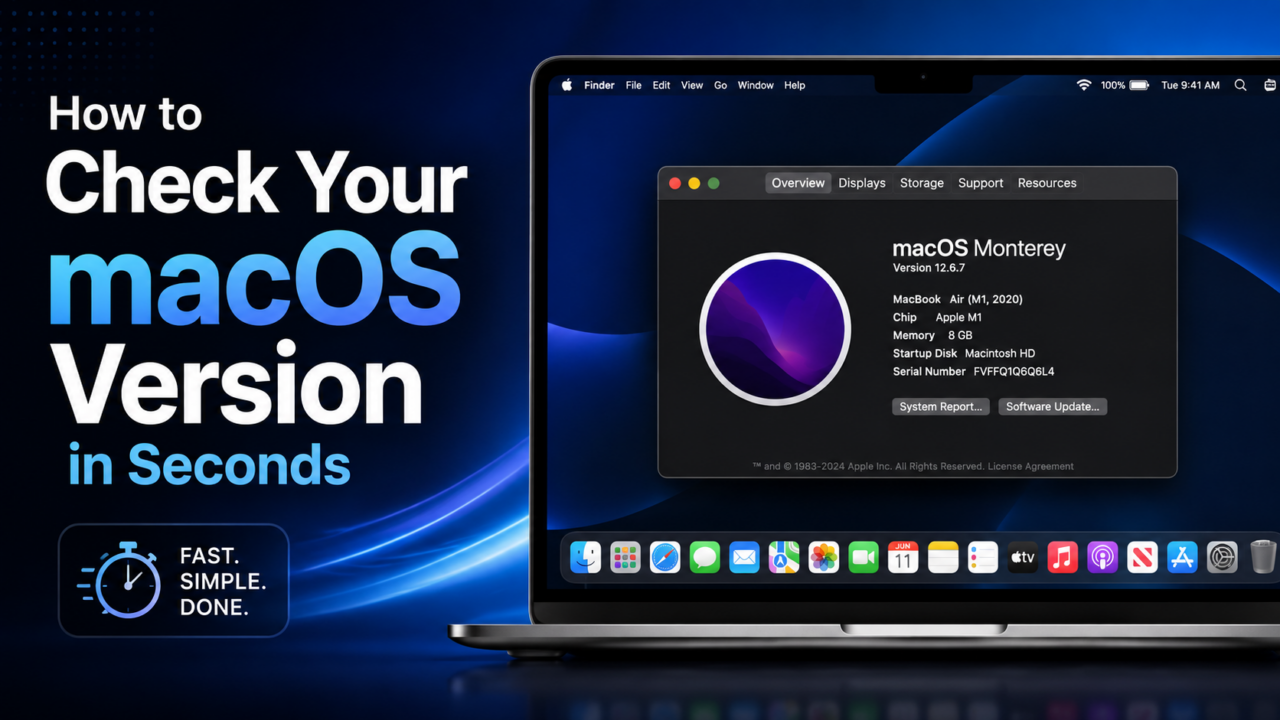
Whether you’re troubleshooting a glitchy app, checking whether your Mac can run the latest update, or just curious what you’re working with, knowing your macOS version is one of those little things that comes in handy constantly. The good news? Finding it takes about five seconds. Here’s exactly how.
Watch: check your macOS version in under a minute
Prefer to see it done rather than read it? Here’s the whole thing, start to finish — you’ll know your version before the video even ends:
▶️ Watch: How to Check Your macOS Version
Prefer the written steps? They’re right below.
The quick way: About This Mac
- Click the Apple logo () in the top-left corner of your screen.
- Click About This Mac.
- A window pops up showing your macOS name — like Sonoma, Sequoia, or Tahoe — with the version number right below it.
That’s it. No settings menus, no digging. Whatever Mac you’re on, this works the same way.
Want the exact build number? Click the version
If you’re troubleshooting with support, filing a bug report, or checking whether a specific fix has rolled out, you may need the precise build number (something like 24A335). To get it, just click directly on the version number in that same About This Mac window. It’ll flip to reveal the full build. Click again to toggle back.
The build number is more specific than the version — Apple pushes small updates and security patches that change the build without changing the headline version number, so it’s the most exact way to pin down what you’re running.
What the macOS names and numbers actually mean
Apple gives every yearly macOS release a California-themed name and a version number, which can get confusing. Here’s a quick cheat sheet for recent releases:
- macOS Tahoe — version 26
- macOS Sequoia — version 15
- macOS Sonoma — version 14
- macOS Ventura — version 13
- macOS Monterey — version 12
So if About This Mac says “Sequoia 15.x,” you’re on Apple’s 2024 release. Knowing the name-to-number mapping makes it much easier to tell how far behind (or up to date) you actually are.
Is your Mac stuck on an old version?
Here’s where checking your version really pays off. If your Mac won’t update to the newest macOS, it’s usually not a bug — it’s that Apple drops older Macs from each new release. Every year, a batch of older models ages out of support and stops receiving the latest features and, eventually, security updates.
The fastest way to find out where your machine stands is to check it against the supported list. Our free macOS versions and compatibility guide shows you the newest macOS each Mac can run, so you’ll know immediately whether you’re genuinely maxed out or just need to hit “update.” And if you’re not even sure exactly which Mac you have, our Apple serial number lookup will pin down the exact model, year, and chip in seconds.
Worth knowing: even a Mac that’s aged off the latest macOS can often keep running safely for a while, especially if you install any final security updates still offered for its version. But once the security patches stop entirely, that’s the real signal it’s time to think about moving on.
(Troubleshooting something more serious, like a Mac that won’t boot at all? Here’s our guide on fixing the dreaded white screen of death.)
Stuck on an old version? Your Mac is still worth real money
If your Mac has hit the end of the update road, here’s the part people forget: that old machine still has real cash value — often more than you’d expect, even if it’s a few years old, has a rough battery, or a cracked screen.
Before you shove it in a drawer, do a couple of quick things:
- See what it’s worth. Check how much your MacBook is worth right now — it takes about a minute.
- Get a fair quote and sell it. SellMac gives you a fast, no-lowball quote, covers shipping, and pays quickly. (Curious why used Macs hold value so well? Here’s why the Mac resale market keeps growing.)
Then put that money toward the upgrade — and you don’t have to pay full retail either. Techable’s certified refurbished Macs get you a quality, tested machine (warranty included) for well below new pricing. Selling the old one and buying refurbished is easily the smartest-money way to jump to a newer Mac.
Not sure whether to go Air or Pro on your next one? Our breakdown of the M5 MacBook Pro vs. MacBook Air walks you through it.
Bottom line
Checking your macOS version is a five-second job: Apple menu → About This Mac → done. Click the version for the build number, cross-reference it against the compatibility list to see if you can update, and if you’ve hit the end of the line, remember your old Mac is worth real money toward the next one.
Now you know your version — and exactly what to do with it.