
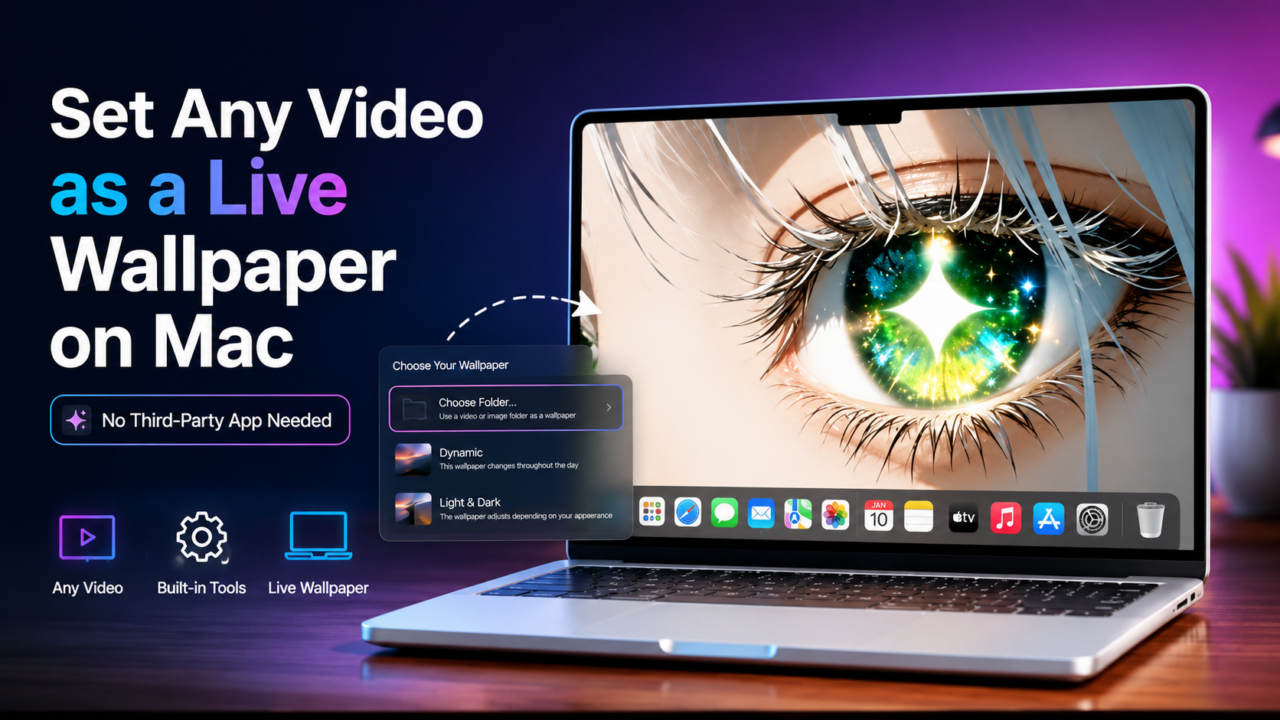
Apple gives you those gorgeous aerial live wallpapers on your Mac, the slow drone shots over mountains, cities, and coastlines. They look incredible. But here’s the catch: Apple only lets you use its videos. There’s no built-in button to drop in your own clip.
Good news? There’s a workaround. With a little Finder digging and zero extra apps, you can swap in basically any video you want and have it play as your desktop and lock screen wallpaper. It takes a few steps, but once you’ve done it, it’s honestly pretty slick.
Heads up before we start: this is an unofficial trick that swaps files inside macOS, so follow the steps closely, and you’ll be golden. Let’s get into it.
What you’ll need before you start
- A Mac running macOS Sonoma or later (that’s when live/aerial desktop wallpapers showed up).
- The video you want to use — a .mov file works best. If yours is an MP4, convert it first to avoid playback issues.
- About 10 minutes and a little patience.
That’s it. No downloads, no sketchy software.
Step 1: Find Apple’s hidden wallpaper folder
First, we need to track down where macOS stashes its live wallpaper videos.
- Open Finder.
- In the menu bar, click Go → Computer.
- Open your hard drive (usually “Macintosh HD”).
- Navigate to Library → Application Support.
- Look for the folder named
com.apple.idleassetsd, then open Customer inside it.
This is where Apple keeps the actual video files for those built-in live wallpapers.
Step 2: Download a live wallpaper first (if the folder’s empty)
Pop open that Customer folder, and it’s empty? Don’t panic — that’s totally normal. It just means you haven’t downloaded any of Apple’s live wallpapers yet, so there’s no file to work with.
Here’s the fix:
- Go to System Settings → Wallpaper.
- Temporarily switch to any live (aerial) wallpaper from Apple’s collection.
- Let it download fully. This can take a minute or two, depending on your connection.
Downloading one creates the placeholder video file we’re going to hijack. Once it’s done, you’ll have something sitting in that folder to replace.
Step 3: Find the exact file path with Activity Monitor
This is the clever part. Instead of guessing which file is your active wallpaper, we’ll have macOS tell us directly.
- Keep the Wallpaper settings window open — do not minimize it. This matters.
- Open Activity Monitor (Applications → Utilities → Activity Monitor, or just search for it with Spotlight).
- In the list, find the wallpaper process — look for the “aerial” extension.
- Double-click that process to open its details window.
- Click the Open Files and Ports tab.
- Scroll all the way to the bottom. You’ll see a file path pointing to a video — that’s the exact wallpaper file currently in use.
- Copy that full path.
Boom — now you know precisely which file to swap.
Step 4: Open the folder where that video lives
- Back in Finder, click Go → Go to Folder.
- Paste the path you just copied and hit Enter.
- Finder jumps you straight to the video section — and you’ll spot the same wallpaper clip you set earlier.
Take note of that file’s exact name (it’ll be a long string with an .mov extension). You’ll need it in a second, so copy it.
Step 5: Rename your own video to match
Now we make the switch.
- Open a new Finder tab or window and grab the video you want to use. (Saving it to your Desktop first keeps things easy.)
- Rename your video to the same name as Apple’s original wallpaper file — the one you just copied.
- Press Enter to confirm the new name.
The trick here is simple: macOS is looking for a file with that specific name. As long as your video carries the same name, the system will happily play it instead.
Step 6: Swap the files
- In the wallpaper videos folder, delete the original Apple file (the one you’re replacing).
- Drag and drop your renamed video into that same folder.
Your clip is now sitting exactly where macOS expects to find a wallpaper. Don’t do anything else here yet.
Step 7: Restart the wallpaper process to apply it
This is what makes the magic happen.
- Go back to Activity Monitor.
- Select that wallpaper / aerial process again.
- Hit the Quit button ( ⓧ at the top).
- When the pop-up appears, choose Force Quit.
The moment you force quit it, macOS reloads the wallpaper process — and this time it grabs your video. Minimize everything, and you’ll see your custom clip playing right there on the desktop.
Want to see it in action? Hit the lock screen (Control + Command + Q) — your video plays there too. Pretty cool, right?
Watch the full walkthrough
Sometimes it’s easier to just see it. Here’s the complete step-by-step video so you can follow along in real time:
▶️ How to Set Any Video as a Live Wallpaper on Mac
Quick troubleshooting tips
A few things that trip people up:
- Won’t your video play? It’s almost always a format issue. Convert your clip to .mov and make sure it’s a reasonable resolution (4K looks best, but 1080p works fine).
- The wallpaper reverted after an update? macOS updates can restore the original files, so you may need to redo the swap. Keep a backup copy of your video handy.
- Can’t find the “aerial” process? Double-check that your Wallpaper settings window is still open and that you actually downloaded a live wallpaper in Step 2.
- Always back up the original file before deleting it, just in case you want Apple’s version back.
The bottom line
Apple may not officially let you set custom video wallpapers on Mac yet, but with this Finder workaround, you can roll your own, no apps, no cost, just a few minutes of setup. Whether it’s a clip of your favorite city, a chill nature loop, or something totally your own, your desktop’s about to look a whole lot more you.
Want to run these live wallpapers on a newer Mac? Shop our certified refurbished Macs at Techable — premium machines at a fraction of the price.
Got an older Mac you’re ready to part with? Turn it into cash at SellMac.